How to Choose and Use an Editable Square Closed Book Cover Mockup Effectively
If you are designing a book cover for a physical square book—such as a children’s picture book, a trade paperback, or a special edition volume—you know the challenge of presenting your work in a believable, professional context. An editable square closed book cover mockup offers a quick way to place your cover art onto a realistic 3D representation of a finished, closed book. Instead of showing just a flat design, you can display it in an environment that suggests weight, texture, and presence. But even the best mockup can backfire if you approach it carelessly. Many creators, from independent authors to freelance designers, make predictable mistakes that undermine the final result. This article walks through the most common pitfalls and shows you how to get the most value from your mockup without wasting time or money.
What Is an Editable Square Closed Book Cover Mockup and Why It Matters
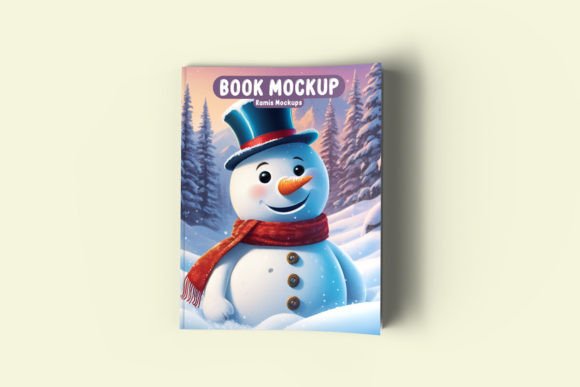
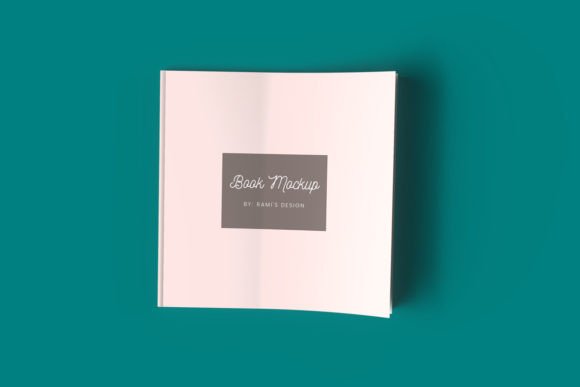
An editable square closed book cover mockup is a pre-built digital file—usually a PSD, AI, or PNG overlay—that lets you insert your own cover design into a realistic scene. The “square” refers to the aspect ratio of the book itself, not necessarily the page dimensions; many hardcover or paperback square books have near equal height and width, creating a compact, symmetrical object. The mockup typically includes details like spine thickness, page edges, lighting, shadows, and reflections. Because it is “editable,” you can swap the cover image via a smart object or layer without needing advanced 3D skills. This makes it a powerful tool for authors, marketers, and publishers who want to show a book in context for social media, ads, websites, or portfolios.
Why are people interested in such mockups? Because a realistic presentation builds trust. A flat JPEG of your cover might look fine, but placing it on a mockup instantly signals that your product is finished, tangible, and ready for sale. That perception can improve click-through rates, preorder conversions, and overall credibility. However, the mockup is only as effective as the care you put into using it. Rushing through the customization or ignoring key details can turn a convincing image into a distracting, amateurish one.
1. Using the Wrong Aspect Ratio or Dimensions
The most frequent error is assuming all square mockups are identical. An editable square closed book cover mockup may have a specific book square dimension (e.g., 8×8 inches, 10×10 inches, or even a 1:1 ratio with added spine width). If your cover artwork does not match that exact trim size—including bleed—your cover may appear stretched, cropped, or misaligned when inserted. This is especially problematic if the mockup includes a visible spine or back cover: the proportions will look off, and the viewer will sense something is wrong even if they cannot articulate it.
How to avoid this: Always check the mockup specifications before purchasing or downloading. Look for the precise book dimensions (e.g., 8″ × 8″) and match them to your cover file. If your cover is for a slightly different size, you can sometimes scale within the smart object, but distortion or loss of resolution is likely. Better approach: find a mockup that matches your exact target book size, or adjust your cover document to fit before insertion. If the mockup offers a PSD with separate layers for the front, spine, and back, make sure each section aligns with your designed layout.
2. Overlooking the Spine and Cover Wrap
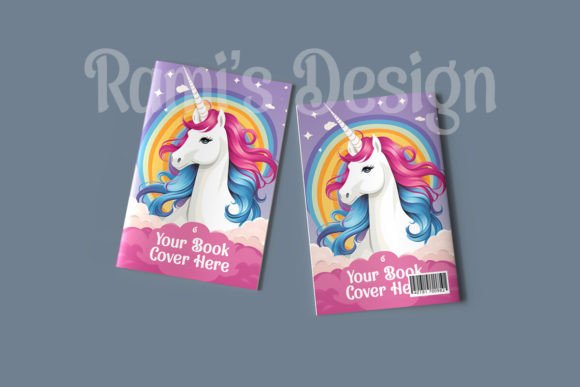
A square book cover is not just a front image. In a closed book mockup, the spine—and often a portion of the back cover—are visible. Many users insert only the front cover into the smart object, leaving the spine area blank or fitted with a generic placeholder. This destroys the illusion. The book looks like a flat panel with a sticker, not a wrapped case.
Practical advice: Create a full cover wrap file that includes the front, spine, and back in one continuous design. Even if the mockup shows only a slight angle of the spine and back, include those elements with correct continuity. For square books, the spine width depends on page count and paper thickness—estimate it roughly or use a template from a printer. When inserting into the mockup smart object, place the entire wrap so that the spine aligns with the mockup’s groove. This small step elevates realism dramatically.
3. Ignoring Lighting, Shadows, and Reflection Overlays
Editable mockups often come with preset lighting and shadow layers that simulate a real environment. Some users disable these or overwrite them inadvertently when they paste a flat image. The result is a cover that looks unnaturally bright, unshadowed, or disconnected from the scene. It appears to float on top of the book object rather than being printed on it.
Better approach: Keep the mockup’s lighting and shadow layers intact. If you need to adjust brightness or contrast, do it on a separate adjustment layer that clips to the cover artwork, so it stays within the mockup’s shading. In some PSD mockups, you can also edit the shadow opacity or angle—use these sparingly. The goal is to make the cover look like it was printed, bound, and photographed under realistic light.
4. Using Low-Resolution Cover Art
A mockup can look crisp even if your cover image is small, but that crispness will reveal every pixel. Many designers compress their cover to save file size and then wonder why the mockup looks blurry. Because the mockup may render the cover at a large size (sometimes exceeding 3000 px on the longest side), a low-res image becomes pixelated.
What to check before inserting: Use an image that is at least 300 DPI at actual book size. For an 8×8 inch book, that means a file roughly 2400×2400 pixels or larger. If your cover is ready for print, it already meets this standard; if it is a web-only version, export a higher-resolution copy specifically for the mockup. Also use a lossless format like PNG or TIFF within the smart object to avoid compression artifacts.
5. Buying a Mockup with Incompatible Software or File Format
Not all editable mockups work in every design tool. Many are built for Adobe Photoshop (PSD) with smart objects. Others are provided as Adobe Illustrator (AI) files, or as layered PNGs that require manual alignment. Beginners sometimes purchase a mockup only to discover they cannot open or modify it without the right software.
Pre-purchase checklist: Read the product description carefully. Look for statements like “compatible with Photoshop CS6 and above” or “requires Adobe Photoshop.” If you use Affinity Photo, Procreate, or a free alternative like GIMP, search specifically for mockups that support those formats. Some creators now offer PSD files that work in Affinity, but it is not guaranteed. When in doubt, choose mockups with clear documentation and user support. Also check the license terms—commercial use may require an extended license if you plan to sell the mockup output.
6. Overlooking the Background and Composition
Many mockups come with a stylish background—a desk, a shelf, a tabletop, or a plain studio backdrop. While these look great in previews, they may clash with your brand aesthetic. If you use a mockup with a rustic wood background for a sleek tech book, the mismatch hurts credibility.
Advice on selection: Choose an editable square closed book cover mockup with a neutral or minimal background that you can easily modify. Some mockups offer separate background layers or even transparent backgrounds so you can place the book into your own scene. Alternatively, use a mockup that includes multiple background options. For social media graphics, a clean white or soft gradient often works better than a busy setting because it puts the focus on your cover. If you want an environment, make sure it aligns with your book’s genre and tone.
What to Check Before Making a Final Decision
Before you buy or download an editable square closed book cover mockup, run through this quick checklist:
- Dimensions and trim: Does the mockup represent the exact book size you intend to use? If not, adjust your cover or find a better match.
- Smart object compatibility: Can you edit the cover easily? Look for PSD with labeled layers or a dedicated smart object folder.
- Resolution and output: Will the mockup produce a file large enough for your needs (web, print ad, social media)? Check the output dimensions in pixels.
- License: Is it royalty-free for personal and commercial use? Some free mockups restrict use in merchandise or require attribution.
- Customer support and reviews: Verify that other users found the mockup easy to use and free of hidden errors like missing layers or incorrect perspective.
A Better Workflow for Using Your Mockup
To get professional results every time, follow this process:
- Prepare your cover wrap as a single high-resolution file with front, spine, and back in correct positions.
- Open the mockup PSD. Locate the smart object layer (often named “insert cover here” or “your design”).
- Double-click the thumbnail to open the smart object. Replace the placeholder with your cover wrap, then save and close.
- Review the mockup at 100% zoom. Verify alignment at the spine edges and that no white gaps appear.
- If the mockup uses lighting layers, adjust them minimally. Do not flatten the file unless required for output.
- Export as PNG or JPEG in the resolution your use case demands. For web, keep it under 2 MB for fast loading; for print proofing, use high-quality PNG.
This method avoids the most common pitfalls and ensures your editable square closed book cover mockup performs as intended. The result is an image that looks professionally photographed, not pasted together. Your audience—whether potential buyers, clients, or followers—will perceive care and quality. And that perception is often the difference between a book that gets ignored and one that gets picked up.
Mockups are tools, not magic. They work best when you treat them as part of a larger design workflow rather than a quick fix. Invest the time to match dimensions, preserve lighting, and use high-resolution art. Your book cover deserves a presentation that does it justice, and an editable square closed book cover mockup is one of the most effective ways to achieve that—if you use it right.